 Nuri
Nuri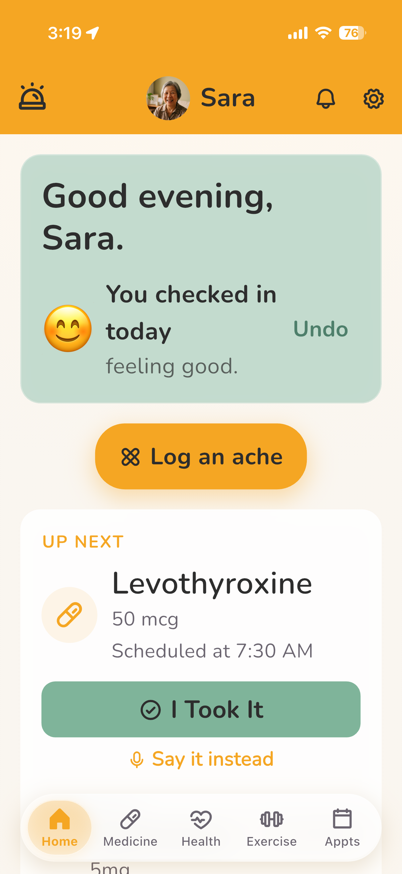
Their phone
The home screen, and not much else
It runs on the phone they already own. No new gadget, no hub, nothing to plug in.
-
Their phone
What you see
This screen is not on your phone.
Their home screen is theirs. What reaches you is what they do on it: the check-in, the dose, and the SOS if they ever press it.
What your parent sees
One screen. The next medicine, a one-tap check-in, somewhere to log an ache, and help if they need it.
A greeting, today's check-in, the next dose with its button, and a quick-call list of the doctors and pharmacies they have saved. The emergency button sits in the bar at the top of each of the five main tabs.
Why I built it It looks the same on Monday as it did on Sunday. That is the part that makes an 82-year-old keep using it.
-
The daily check-in
What you see
One line, once a day.
Their answer appears on your home screen as a single line, and it sets the colour of the card so a bad day is visible before you read it.
What your parent sees
Three buttons, or just say it.
How are you today, answered with Good, Okay or Bad. There is a microphone if speaking is easier than tapping.
Free-form speech is understood on Nuri Plus.
-
Getting connected
What you see
Until a parent accepts, Nuri opens on the connect step.
Your side of the app is built around someone. You share your Nuri ID and they enter it. Until then, you can tap Continue for now.
A Nuri ID is six characters, like A2K-7X9. It never expires.
What your parent sees
Their app works on its own from day one.
Medicines, reminders and the check-in all work before anyone is connected. Family is something they add, and something they can remove.
-
Making it readable
What you see
There is no setting on your side.
Text size lives on their phone and belongs to them. You cannot change how their screen looks from yours.
What your parent sees
Three sizes, set on their own phone.
Small, Medium and Large, with a bold-text switch and a high-contrast mode. It changes their app and nobody else's.
Both modes
Medicines, handled
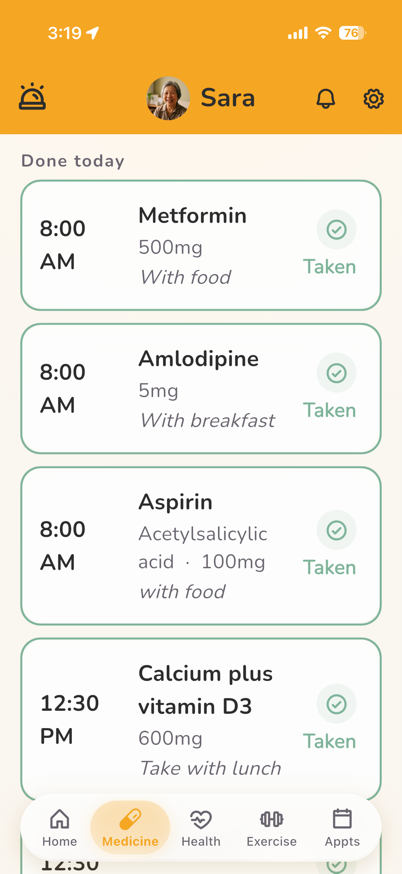
Each dose is a large row with one button on it. Everything else hangs off that.
-
A dose
What you see
They tap “I took it” once. You see it from wherever you are.
Their day shows Up next and Done today, with a daily goal ring.
What your parent sees
One large row, one button.
Each dose opens to a single Confirm Dose button. Once it is logged, that button reads Already taken and locks, so the same dose cannot be taken twice by accident.
Why I built it This is the reason most families install Nuri, so it is the part I have been hardest on.
-
After a dose
What you see
This one is not yours to answer.
You see what they reported afterwards in the health diary. You are not asked the question and you cannot answer it for them.
What your parent sees
How did you feel after taking it?
After confirming a dose, Nuri asks. They can tap Fine, or pick a symptom and say whether it was mild, moderate or severe.
If they say severe, Nuri tells them to use SOS or call family.
-
A missed dose
What you see
You see it was missed, without asking.
A dose counts as missed one hour after its time, and it shows on their day. If they tell you on the phone that they did take it, you can mark it yourself.
A missed dose reaches you as an alert.
What your parent sees
The row says Missed, and the button still works.
A late dose can still be confirmed from the same row. Once it is, it moves to Done today.
-
Safety checks*
What you see
Nuri checks a new medicine for interactions.*
It checks the new medicine against everything else they take and shows what it finds before it saves.
Ask a pharmacist or doctor whether it applies to what else they take.
What your parent sees
The same check runs when they add one themselves.
They can add a medicine by typing it, photographing the label or saying it, and Nuri checks it for interactions before it saves.
*The AI medicine check is in selected regions. Elsewhere, Nuri checks medicines against public drug databases.
Your phone
One look, and you know
It replaces the worried text you send at nine every night.
-
The overview
What you see
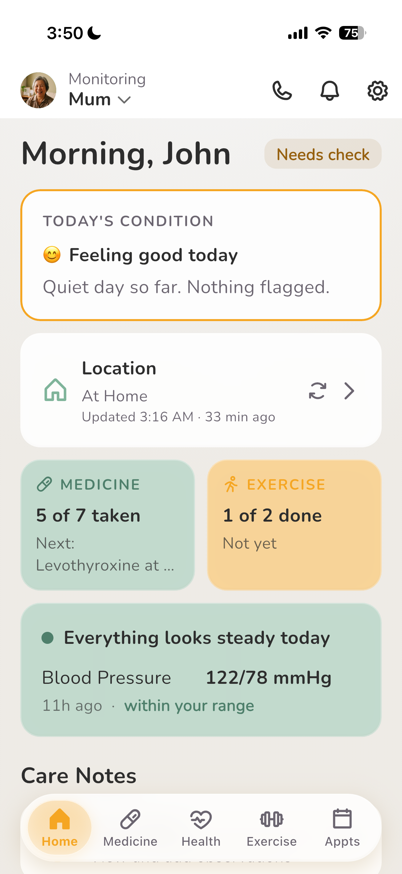
Open it, see the day, close it. Doses taken, how they said they felt, anything that needs a hand.
You ring to see how they are, and spend the whole call checking up on them instead. The overview is meant to take that job off the call.
What your parent sees
There is no overview on their side.
Their phone shows their own day, one thing at a time: the check-in, the next dose, somewhere to log an ache. The summary of it exists on your phone only.
Why I built it Families want to help with the basics, and there was no way to do it without either nagging or hovering. This is my attempt at a third option.
-
Alerts
What you see
A missed dose, an emergency, a reading outside the range you set, and a few others, such as a new medicine being added.
Either you hear nothing for three days, or you are in a family chat that never stops. Nuri sends only the few things that matter and keeps the rest off your phone.
Sent to your phone.
What your parent sees
The alerts are yours. Their phone gets none of them.
What their phone shows them is their own reminders: medicines, appointments and the check-in.
The long view
The pattern behind the day
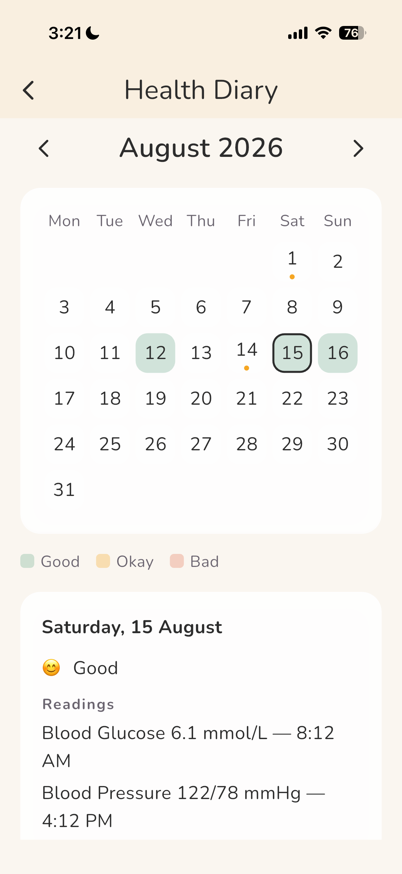
A month at a glance: how they felt, what hurt, what got logged.
-
The health diary
What you see
A month on one screen, so you walk in able to say “this started about three weeks ago”.
Fifteen minutes with the doctor, and the best you could offer was that they have been a bit off lately. The diary has how they felt, what hurt and what got logged, day by day.
What your parent sees
The same month, on their phone.
The diary is the one screen that is identical on both sides. They can open it themselves, and they can show it to the doctor without you in the room.
Safety
When it goes wrong
Two things families ask about first.
-
An emergency
What you see
You are told. You do not press it.
The SOS exists on their phone only. What you get is the alert when it happens, and their location with it.
What your parent sees
One tap. No holding it down.
An emergency button at the top of each of the five main tabs, then a sheet offering Call Ambulance, Send silent SOS, or somebody they have saved, with no countdown and nothing to hold. If the alert cannot be sent, Nuri says so and tells them to call, rather than leaving them reassured for nothing.
Reaching family is inside that sheet, not on the home screen.
-
Getting home
What you see
Their location reads “At home” when they are home.
You do not want to ask where they are. You want to know they got back.
Latest location only. Older locations delete after seven days; the most recent is kept.
What your parent sees
They switch it on. They can switch it off.
Sharing is a setting on their own phone, and only they can turn it on or off. On iPhone it updates while Nuri is open. Safe-zone alerts and visit history are part of Nuri Plus.
The parts that just have to work
- Three text sizes, a bold-text switch and a high-contrast mode.
- Nuri is in English.
- The daily check-in is a row of faces. One tap, or say it out loud.
- Log an ache: what kind of pain, where it is, and how bad.
- The exercises their doctor or physio gave them, with reminder times.
- Add a medicine or supplement by typing it, photographing the label, or saying it.
- Vitamins, herbal and ayurvedic supplements get the same reminders as medicines.
- Blood pressure, blood sugar and weight, kept together. On every plan.
- Appointments: add a visit once, and on Nuri Plus you are both reminded.
- Doctors and pharmacies in one list, one tap to call.
- Who gets told what: primary, secondary, or emergency only.
- Keeps working on a bad connection, and sends what you logged when it returns.
- A plain-words summary of the last stretch of check-ins and doses.
- Export everything Nuri holds, whenever you like, without asking us.
- Connect the two phones with a Nuri ID, and one of you approves the link.
- Sign in with email, phone number, Apple or Google.
Not built yet
Wearable sync
Heart rate, sleep and step data from a watch would sit nicely alongside the daily check-ins, and we want it. It is not in the app today. We would rather say that than let you find out after you have paid.
Bring Nuri home.
Set it up with your parent this weekend. It takes an afternoon, and it works on the phone they already own.